
Think for a moment about all the apps where you have pressed the “Continue with Google” button.
An online store, a photo editing app, an artificial intelligence platform, a productivity service, or a website you only needed to use once.
You have probably done it dozens of times.
It is convenient. You don’t need to create another password, remember a new username, or fill out endless forms.
But now imagine you lose access to your Google account.
Or that someone manages to get into it without your authorization.
What would happen to all those apps you use?
And what about the apps that, besides signing you in, you also gave permission to read your emails or files?
Here is an important detail: signing in with Google is not necessarily insecure. In fact, it can be more secure than using weak or reused passwords.
The real problem arises when we don’t understand the permissions we grant, neglect the security of our main account, or depend entirely on a single sign-in method.
Let’s explain how it really works, what its risks are, and what you can do to protect yourself.
What does signing in with Google mean?
When a website offers you the “Continue with Google” option, it is using an authentication mechanism that confirms your identity through your Google account.
Instead of creating a password specific to that service, you allow Google to help verify who you are.
For example, imagine you want to sign up for a design app.
You can create an account using your email address and a new password.
Or you can select “Continue with Google”.
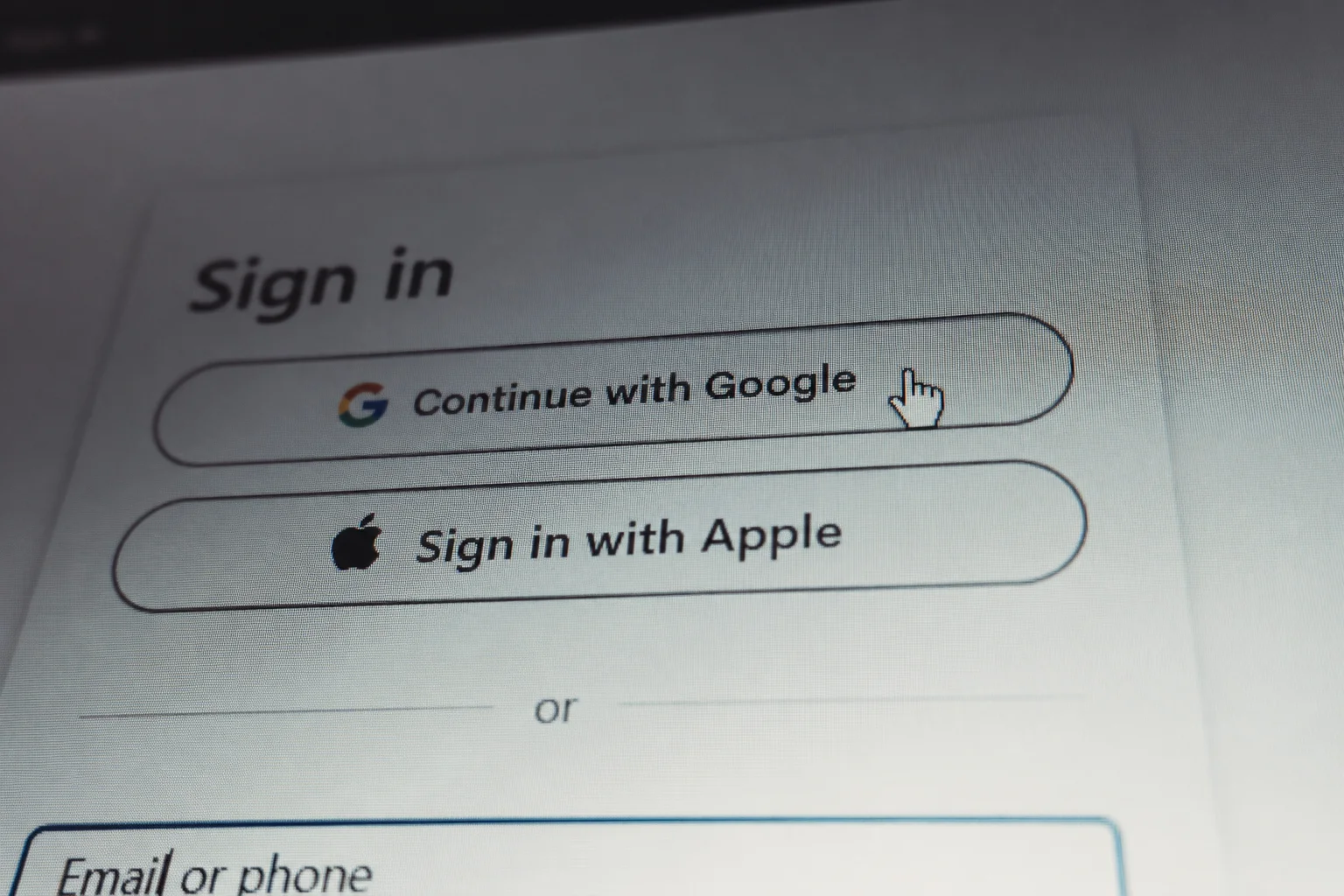
In the second case, Google confirms your identity and shares certain basic information with the app, always within the corresponding authorization process.
According to Google’s official documentation, that information may include your name, email address, and profile picture.
Something fundamental is that Google does not share your password with the third-party app.
This mechanism uses identity and authorization standards such as OpenID Connect and OAuth 2.0.
And although these concepts may sound complicated, the basic idea is simple: an app can verify your identity without needing to know your Google account password.
Source: Google — How Sign in with Google helps you share data safely.
Why can using Google to sign in be more secure?
Before talking about the risks, we have to acknowledge its advantages.
One of the most common security problems is reusing the same password on different sites.
Imagine you use the same password for an online store, a music app, and your email.
If one of those services suffers a breach and the password is exposed, an attacker could try to use it on the other platforms.
This is known as credential stuffing when stolen credentials are tried on other services.
With “Sign in with Google”, you don’t need to create a new password for each compatible app.
And if your Google account is protected by a passkey or a second authentication factor, you can benefit from that protection when signing in through Google.
However, that does not mean third-party apps automatically inherit all of your account’s protections.
Each service remains responsible for managing its own sessions, data, and security controls.
Therefore, federated sign-in can reduce certain risks, but it does not eliminate every possible problem.
Risk 1. Your Google account becomes an important key
Imagine you use Google to sign in to twenty apps.
If you lose access to your main account, you could have trouble getting into those apps.
That doesn’t mean all your accounts are automatically deleted or that every service stops working.
Accounts in third-party apps are independent of your Google account.
But if you set up “Continue with Google” as your only authentication method, you might need to recover your main account first or contact each service’s support.
This can happen if you forget your credentials, lose your recovery methods, or your account becomes temporarily inaccessible.
That’s why it’s a good idea to check whether your most important apps let you set an independent password, add another sign-in method, or configure their own recovery mechanisms.
Not all services offer these options.
And you don’t need to abandon Google to reduce this dependency either.
The goal is to prevent a single incident from leaving you with no way to recover essential services.
Source: Google — Fix issues with linked apps.
Risk 2. Some apps may request access to private information
This is probably the point that causes the most confusion.
Signing in with Google is not the same as authorizing an app to read your emails or modify your files.
They are different functions, although they may appear during related connection processes.
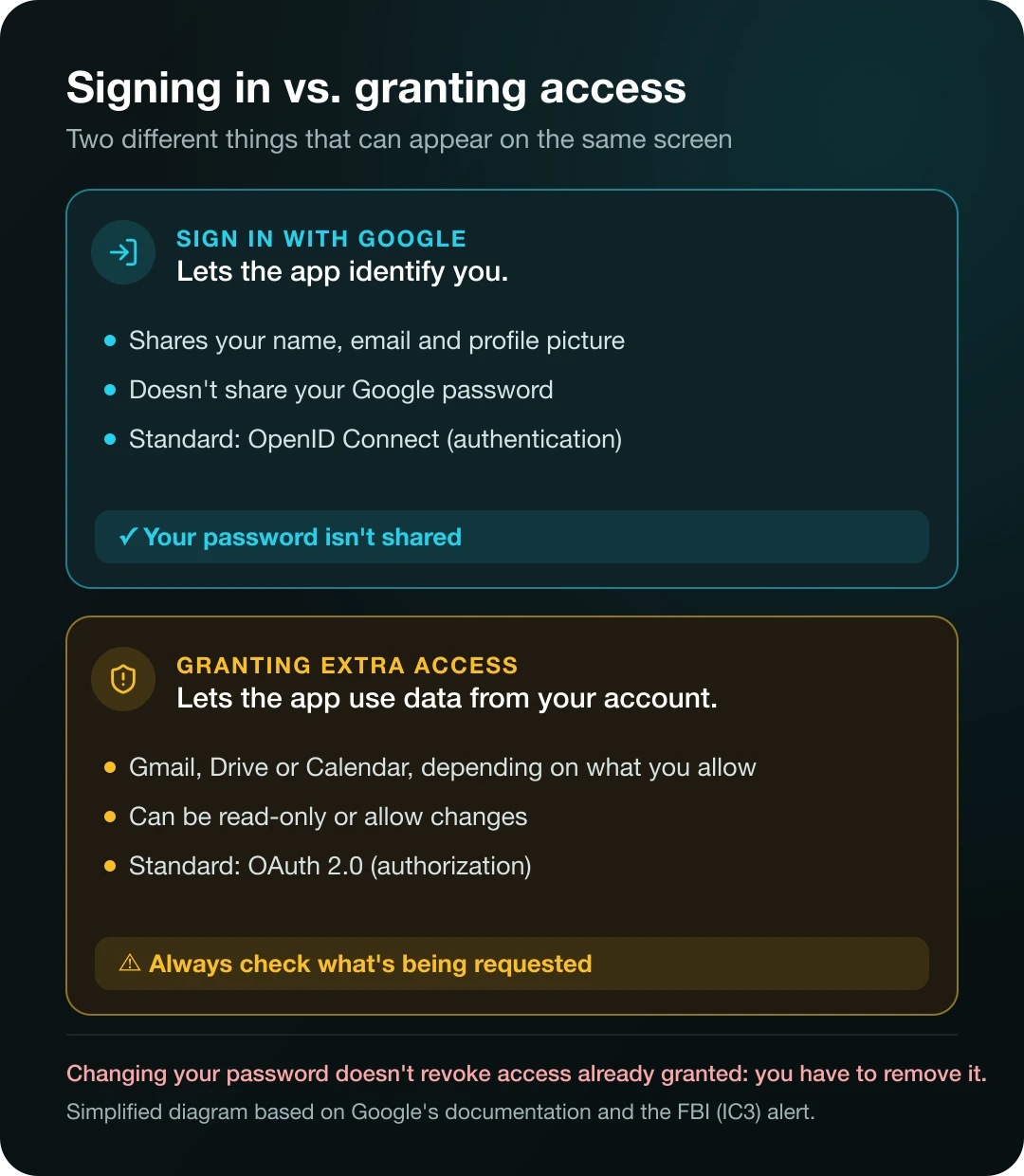
When you use basic sign-in, an app normally receives limited information to identify you.
But certain apps may request additional permissions.
For example, a productivity platform might ask for access to Google Calendar to view or create events.
Another app might request permission to work with files in Google Drive.
A tool that organizes emails might request certain capabilities over Gmail. This happens, for example, with some artificial intelligence agents that work with your email or calendar.
The level of access depends on what the app requests and what you authorize.
Some tools need read permissions.
Others may require permissions that allow them to create, modify, or delete information.
That’s why it’s essential to review the authorization screens before accepting.
You should not assume that all permissions are necessary simply because an app requests them.
Source: Google — Share some access to your Google Account data.
Risk 3. OAuth consent attacks can trick you without stealing your password
This is where the situation becomes especially important.
On September 1, 2026, the FBI’s Internet Crime Complaint Center (IC3) published an alert about attacks known as OAuth consent phishing.
In this type of attack, criminals try to trick a person into authorizing a malicious app.
They don’t necessarily need to know their password.
Imagine you receive a seemingly legitimate email saying someone shared an important document with you.
You open the link and an authorization screen appears.
The page asks you to allow an app to access certain data in your account.
If you grant those permissions, you could be giving access to a program controlled by an attacker.
In the cases documented by the FBI, the malicious apps could request permissions capable of compromising sensitive information.
The most dangerous part is that changing your password does not necessarily revoke the OAuth permissions you already granted.
You may have to explicitly remove the app’s authorization.
This shows why security doesn’t depend only on having a strong password.
It also matters which programs have access to your data.
There are other related but distinct techniques. For example, in March 2026 Microsoft documented campaigns that abuse OAuth redirections to lead victims to phishing or malware download pages. It is not the same as consent phishing, but it shows that authorization processes are also used as lures.
Source: FBI — Malicious Cyber Actors Gain Access Through Consent Phishing.
Risk 4. Someone with access to your device could use your sessions
Imagine you leave your computer unlocked with several apps open.
A person with physical access to the device could try to use those sessions without knowing the passwords.
This scenario is not exclusive to Google.
It can also happen with apps that use traditional passwords, passkeys, or any other authentication method if the session stays open and the device is accessible.
But when you use the same main account to sign in to many services, protecting your devices becomes more important.
For example, if someone gains access to a browser where you have an active Google session, they could try to use certain federated sign-in features.
That doesn’t mean they can automatically get into every app.
Some services require additional checks and maintain independent sessions.
However, you should consider the risk of an open session on a compromised device.
This point is also important if you share a computer or if someone close to you knows your phone’s unlock code.
The recommendation is to keep your devices protected, use automatic locking, and avoid sharing unlock methods with people who shouldn’t have access.
Risk 5. A third-party app could suffer a data breach
Even if you use Google to authenticate, the third-party app may store information about you.
For example, an online store may keep your shipping address, purchase history, and preferences.
A productivity tool might save documents you’ve created within its platform.
And a design app might store your projects.
If that company suffers a breach, that data could be compromised.
That doesn’t necessarily mean your Google account has also been breached.
They are separate systems.
Signing in with Google doesn’t automatically make a third-party app a secure service.
That’s why it’s important to assess the trustworthiness of the platforms where you share information, including when you choose artificial intelligence tools.
Review their privacy policies, avoid handing over unnecessary data, and use well-known services when it comes to sensitive information.
If my Google account is hacked, can they get into all my apps?
Not necessarily.
This is one of the most exaggerated claims circulating on the subject.
If someone gains access to your Google account, it can increase the risk of unauthorized access to connected services.
But the outcome depends on several factors.
For example, some apps maintain their own sessions and may require additional verification.
Others allow you to recover access using your email.
There may also be services that accept sign-in through Google when the user has an authenticated session with the provider.
That makes compromising the main account a relevant risk.
However, there is no rule stating that compromising Google automatically allows access to every app where you used “Continue with Google”.
Security depends on how each app implements authentication and manages sessions.
What matters is understanding the potential scope of the incident and acting quickly if you detect suspicious access.
What happens if you lose your phone?
Losing your phone doesn’t automatically mean losing access to all your accounts.
But it can complicate authentication if you use that device to confirm sign-ins or store passkeys.
That’s why Google recommends setting up recovery options before you need to use them.
These may include a recovery email, an up-to-date phone number, and additional authentication methods.
You can also review which devices are connected to your account and sign out of sessions you don’t recognize.
If you lose a device, it’s important to protect access to it and use the available options to locate it, lock it, or remotely erase its content when appropriate.
Source: Google — Authentication tools for secure sign-in.
How to review which apps are connected to your Google account
This is one of the most useful recommendations in the entire article.
You may have been using your Google account for years and not remember all the apps you’ve connected.
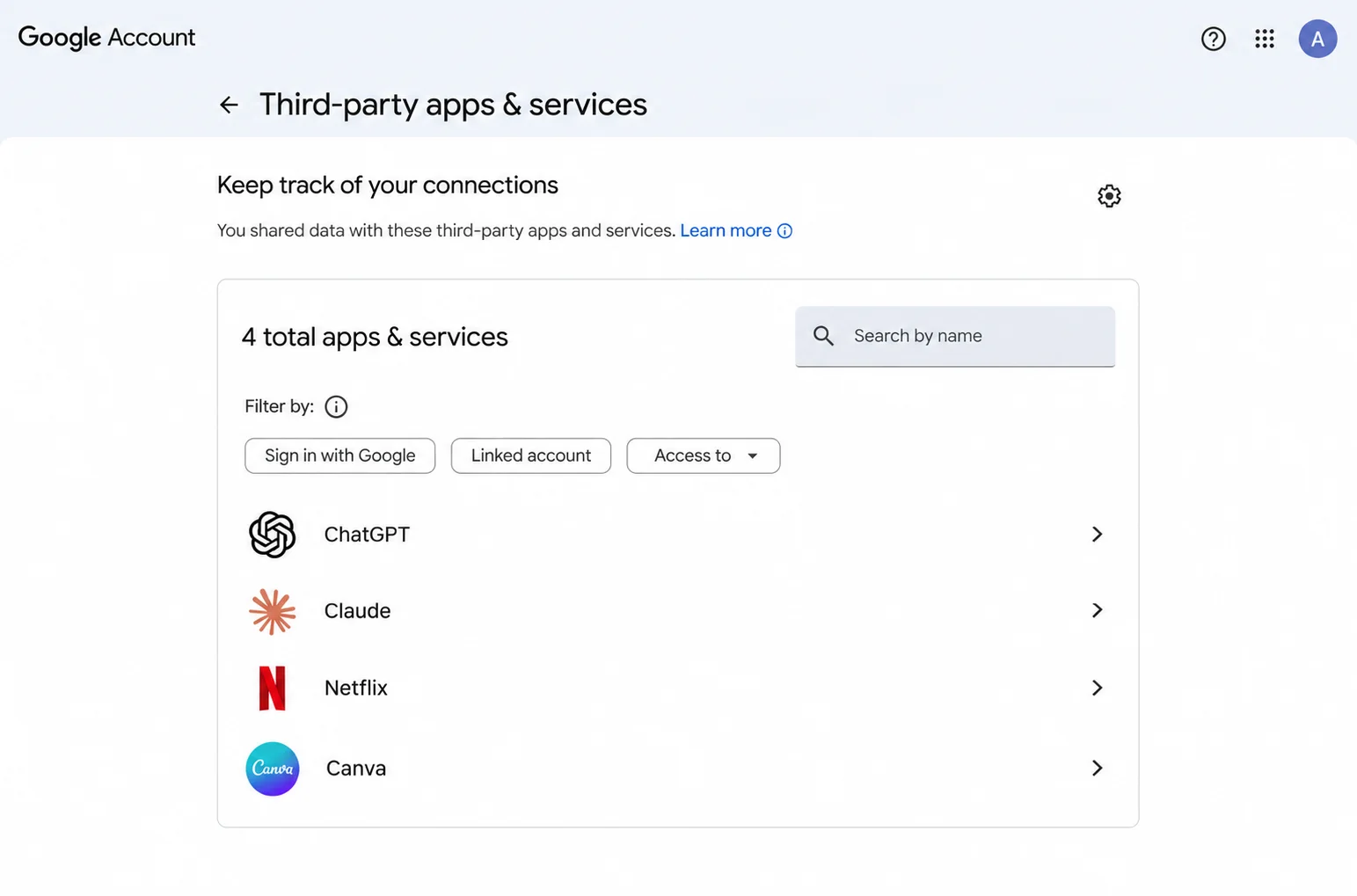
Fortunately, Google offers a page to review those connections.
Step 1. Open your Google account
Go to myaccount.google.com/connections.
Make sure you’re using the account you want to review.
Step 2. Review the connections
In this section you can find different types of relationships with third-party apps.
For example, services where you used “Sign in with Google” and apps you authorized to access certain data.
Step 3. Select an app
Open the details of one of the connections.
Check what kind of access it has and what information it can use.
Pay special attention to apps you no longer recognize or have stopped using.
Step 4. Evaluate the permissions
Ask yourself whether you really need that connection.
If an app should only let you sign in, it wouldn’t make sense to keep unnecessary additional permissions to view or modify sensitive information.
Step 5. Remove the access you don’t need
Google offers different options depending on the type of connection.
For example, you can stop using “Sign in with Google” for a service or remove access permissions to certain data.
Before doing so, check whether you need that integration and whether you have an alternative way to access the service.
Removing the connection doesn’t necessarily delete your account within the third-party app or the data that company has previously stored.
Official guide: Google — Manage links between your Google Account and apps.
Which permissions should you review first?
Not all permissions represent the same risk.
An app that only receives your name and email address has different capabilities than one that can modify files or send messages.
This table will help you understand it:
| Type of access | What it may allow | What to check |
|---|---|---|
| Basic sign-in | Identifying you through Google | Whether you recognize and use the app |
| Profile information | Viewing name, email or photo | Privacy policy |
| Reading data | Viewing authorized information | What data it really needs |
| Editing data | Creating or modifying information | Need for and scope of the permission |
| Gmail access | Certain functions over your email | Exact permissions and trustworthiness |
| Drive access | Viewing or modifying files as authorized | Scope and duration of the access |
The presence of a permission doesn’t automatically mean an app is malicious.
For example, a backup tool may need access to certain files to work.
The question is whether that access is necessary, sufficiently limited, and belongs to a company you trust.
How to protect your Google account in 2026
You don’t need to be a cybersecurity specialist to considerably improve your account’s protection.
These are some practical measures.
1. Turn on 2-Step Verification
It adds an extra layer of security to sign-ins to your account.
This helps reduce the risk of someone getting in using only a stolen password.
2. Consider using passkeys
Passkeys let you authenticate using cryptographic mechanisms tied to a compatible device or manager.
They can use unlock systems such as biometrics or a PIN.
Unlike conventional passwords, they are designed to resist certain phishing attacks.
That doesn’t mean they make your account invulnerable.
You also need to protect your devices and control who can unlock them.
3. Review open sessions
Check which devices have access to your account.
If you find one you don’t recognize, investigate the access and use Google’s options to secure the account.
4. Set up recovery properly
Keep your recovery methods up to date.
Avoid relying exclusively on a phone you could lose or damage.
5. Review connected apps
Remove unnecessary authorizations and pay special attention to permissions to read or modify sensitive information.
6. Use unique passwords where needed
If you create independent accounts, use long, unique passwords.
A password manager can help you manage them.
7. Consider the Advanced Protection Program
Google offers a reinforced security mode for users at higher risk of targeted attacks.
It can be especially relevant for people who handle sensitive information, system administrators, and professionals with public exposure.
The program requires phishing-resistant authentication methods and applies additional restrictions.
Source: Google — Advanced Protection Program.
What should you do if you suspect someone got into your account?
If you received an alert about an unknown sign-in, found apps you don’t recognize, or noticed strange activity, it’s best to act quickly.
First, go directly to your Google account from an address you know, not from suspicious links received by email.
Review recent security activity and connected devices.
If there are signs of unauthorized access, change your password from a trusted device.
Also review your recovery methods and make sure no one has added a phone number or email you don’t recognize.
Next, review your third-party app connections.
Remember that changing your password doesn’t guarantee that all previously granted OAuth permissions are revoked.
If you find suspicious apps, remove their authorizations.
Finally, review the accounts of important services connected to Google and change their credentials when appropriate.
Google’s official guide explains which signs to look for and how to act on a possibly compromised account.
Source: Google — Secure a hacked or compromised Google Account.
Is it better to sign in with Google or create an independent password?
There is no universal answer.
It depends on the provider’s security, the importance of the account, and the available methods.
| Aspect | Sign in with Google | Independent email and password |
|---|---|---|
| Ease of use | High | Requires managing another credential |
| Password shared with the service | No | The password is managed by the service |
| Dependence on Google | Yes, for that sign-in method | Not necessarily |
| Protection against password reuse | Avoids creating another password | Depends on you using a unique one |
| Recovery | Depends on Google and the service | Depends on the service |
| Security risks | Permissions, sessions and main account | Breaches, phishing and password management |
The comparison doesn’t mean that signing in with Google is less secure.
In fact, it can be a good option if your account is well protected and you use trustworthy apps.
The recommendation is to avoid automatic decisions.
Before selecting any sign-in method, consider the importance of the service, its recovery system, and the permissions requested.
Three common mistakes you should avoid
Authorizing permissions without reading them
If an app requests access to your email or files, check what it needs and why.
Don’t accept automatically just because a screen with the Google logo appears.
Using unknown apps with sensitive access
Avoid granting broad permissions to services you don’t know.
A new app may be legitimate, but it deserves closer scrutiny if it requests access to important information.
Believing that changing your password solves any problem
If an attacker obtained authorization through OAuth, you may need to explicitly revoke the permissions, as the FBI alert warns.
You should also check open sessions and recovery methods.
Frequently asked questions
Is it safe to use “Continue with Google”?
It can generally be a safe option, especially if your account has strong authentication and you use trustworthy services. The risks depend on your account’s security, the permissions you authorize, and the protection of each app.
Can apps see my Google password?
The legitimate “Sign in with Google” mechanism doesn’t share your password with third-party apps. However, a phishing page may try to trick you into entering your credentials.
Can an app read my Gmail if I sign in with Google?
Not automatically. To access certain Gmail data, it needs to request and obtain the corresponding permissions.
What happens if I remove an app connected to Google?
It depends on the connection. You can stop federated sign-in or revoke data permissions. This doesn’t necessarily delete your account or the data already stored in the third-party app.
If my Google account is hacked, can they get into all my accounts?
Not necessarily. The risk increases, but each service manages its own sessions and authentication mechanisms.
What do I do if I lose my phone?
Use Google’s official recovery options from another trusted device. Also review open sessions and remove the sign-in methods associated with the lost device when appropriate.
What is OAuth?
OAuth is an authorization standard that lets you grant certain access to apps without handing them your password directly. Sign in with Google also uses OpenID Connect, which adds authentication features.
What is an OAuth consent phishing attack?
It is an attack that tries to trick you into granting permissions to a malicious app. It can allow access to authorized data without needing to steal your password.
Is it advisable to use different Google accounts?
It can be useful to separate personal and professional activities depending on your needs and security policies. However, using several accounts also requires properly managing their access and recovery methods.
Conclusion: the problem isn’t signing in with Google, it’s doing it without checking anything
Using Google to sign in can be convenient and secure.
The system saves you from creating additional passwords and lets you take advantage of modern authentication mechanisms.
But it can also increase dependence on a main account and make it easier to forget which apps we’ve connected.
The biggest risk isn’t the “Continue with Google” button.
It’s authorizing services we don’t know, granting unnecessary permissions, or neglecting the protection of our account.
That’s why I wouldn’t recommend indiscriminately giving up this feature.
I would recommend using it wisely.
Review your connected apps, protect your devices, set up recovery methods, and learn to recognize what information you’re sharing.
Because digital security isn’t about avoiding every tool that makes our lives easier.
It’s about understanding how they work and making better decisions when using them.
If you’ve never reviewed the apps connected to your Google account, today is a good time to do it.
About the author
Rafael Azuaje is a computer engineer with experience in web development and UX/UI design. He shares educational content about technology, artificial intelligence, automation, and cybersecurity, focused on explaining technical concepts in simple terms and helping people use digital tools wisely.
Article updated on November 18, 2026. Setup instructions may change with Google’s updates.