Has your phone ever run out of space right when you wanted to record a video? Or do you have photos, documents and important files scattered across Google Drive, external drives and several computers?
The problem isn't always a lack of storage. Often, it's that our files are disorganized and we depend on different services to access them.
One alternative is to have your own private cloud at home. And for that, there's a technology that has been around for years but is still an interesting option: the NAS.
The best part is that you don't need to set up a data center or spend a fortune to get started. You can buy a device designed for this job or repurpose a computer you already have.
In this guide, we'll look at what a NAS is, what it's for, what its advantages are, which models you can consider in 2026 and how to set one up yourself.
What is a NAS and what is it for?
NAS stands for Network Attached Storage, meaning storage that is connected to your network.
Put simply, it's a device that stores files and lets you access them from different devices connected to the same network.
Imagine you have one computer in your bedroom, another in your office and several phones around the house. Instead of plugging in an external drive every time you need a document, you can store it in one central place and access it from any of those devices, as long as you have the right permissions.
That place would be your NAS.
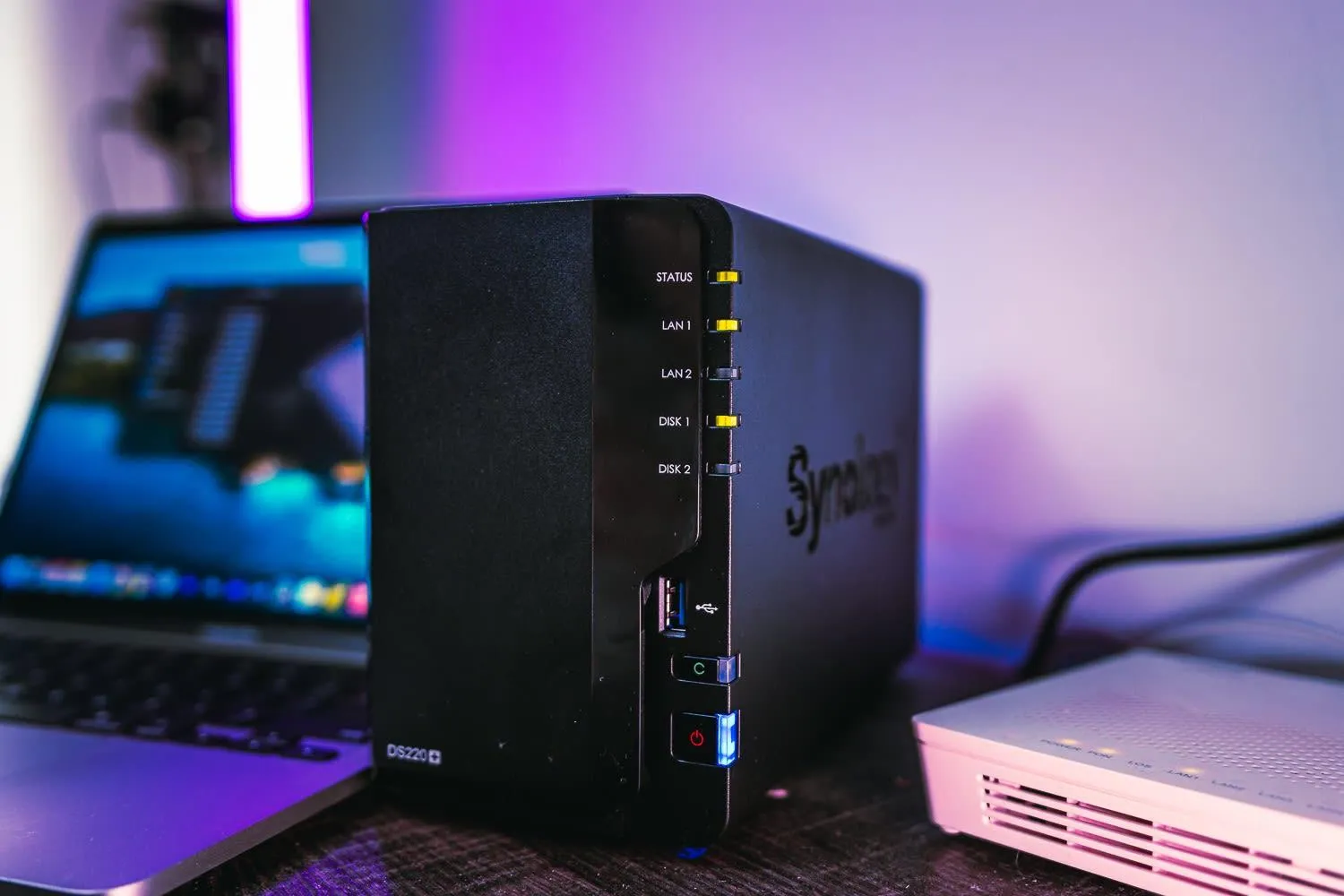
Unlike a regular external hard drive, a NAS usually stays on, connected to the router via Ethernet and available to different users.
It can also run applications that extend its functions beyond storage.
What can you do with a NAS at home?
Although they were originally used mostly in businesses and professional settings, today a NAS has many uses at home.
1. Create your own private cloud
This is probably one of its most appealing features.
You can store documents, photos, videos and projects on a server that you manage yourself.
Some platforms also let you sync files between devices, share folders and access them remotely through secure connections.
That said, having a NAS doesn't automatically mean you can stop using every cloud service. If you want to access your files from anywhere, you'll need to set up remote access correctly and keep the device connected to the Internet.
2. Make automatic backups
Think about all the files you would lose if your computer stopped working tomorrow.
With a NAS, you can set up regular backups of your devices, so you don't have to remember to copy each folder manually.
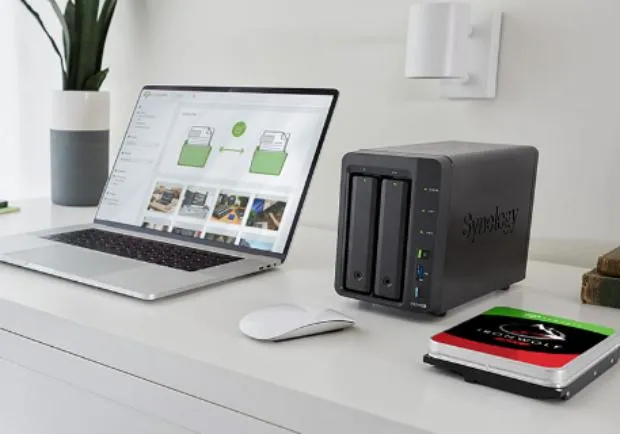
For example, you can schedule a daily copy of your work documents or back up specific folders from a computer.
This is especially useful for people who work from home, edit videos or handle client files.
3. Store and organize family photos
If you have photos scattered across phones, USB drives and storage services, a NAS can help you bring them all together.
Applications like Immich let you manage personal photo libraries, as long as the hardware and operating system are compatible.
You can organize your photos, view them from different devices and, depending on your setup, automate their upload.
4. Create your own media server
Another possibility is to store your collection of movies, personal videos or music and play them on different devices.
With tools like Jellyfin, you can organize a media library to access from compatible TVs, computers and phones.
However, there's an important detail: if you need to convert videos in real time for other devices, the NAS processor must be powerful enough to do it.
A basic device can work perfectly well for sharing files but fall short with several streams that require transcoding.
5. Share files within a team
If you work with other people, a NAS can also serve as shared storage for projects.
You can create users, assign permissions and set up folders for each client or department.
For example, a design agency could keep its photos, editable files and audiovisual materials in one central place, so that team members don't end up working with different versions.
Of course, this doesn't fully replace a collaboration and version control system.
Is it better to buy a NAS or build one?
This is one of the first decisions you need to make.
And there's no universal answer.
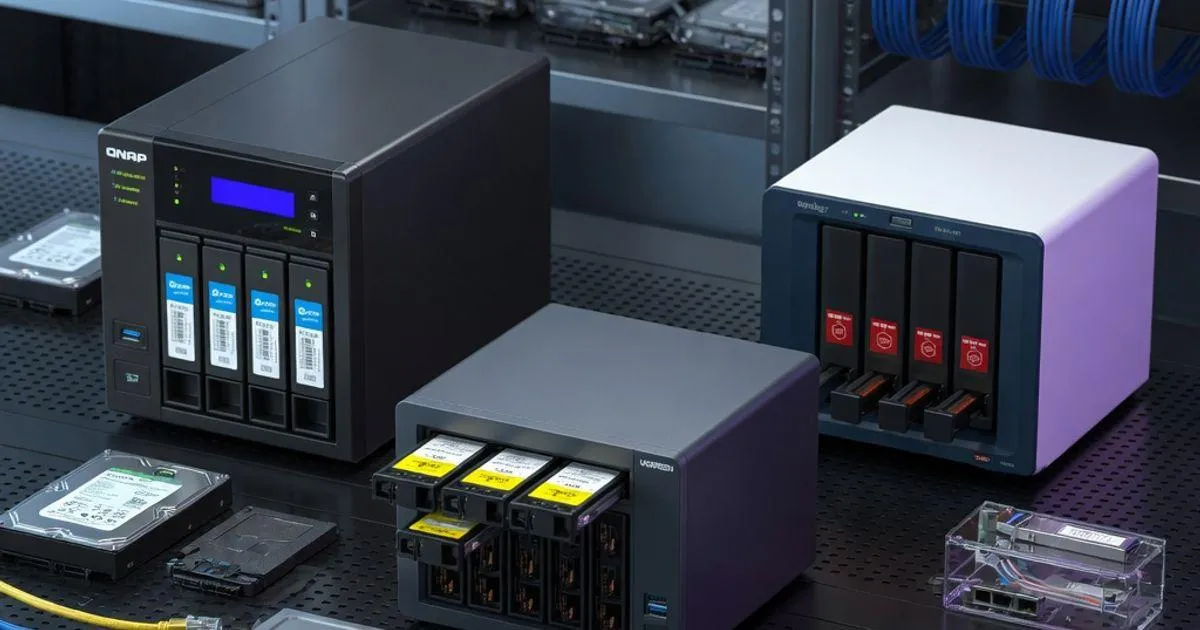
A commercial NAS is usually easier to set up, takes up less space and comes with an operating system designed specifically for managing storage.
On the other hand, building one gives you more freedom to choose the hardware, install applications and expand the system in the future.
| Feature | Commercial NAS | DIY NAS |
|---|---|---|
| Setup | Generally simple | Requires basic knowledge |
| Customization | Depends on the manufacturer | Much greater |
| Size | Usually compact | Depends on the case |
| Power consumption | Usually optimized | Varies with the components |
| Expansion | Limited by the model | Potentially more flexible |
| Maintenance | Built-in tools | More responsibility on the user |
| Cost | Upfront investment in the device | Can reuse existing hardware |
If you want something that works with little configuration, buying one is probably your best bet.
If you enjoy learning, experimenting or already have a spare computer, building your own NAS can be a much more interesting project.
Three commercial NAS devices worth knowing about in 2026
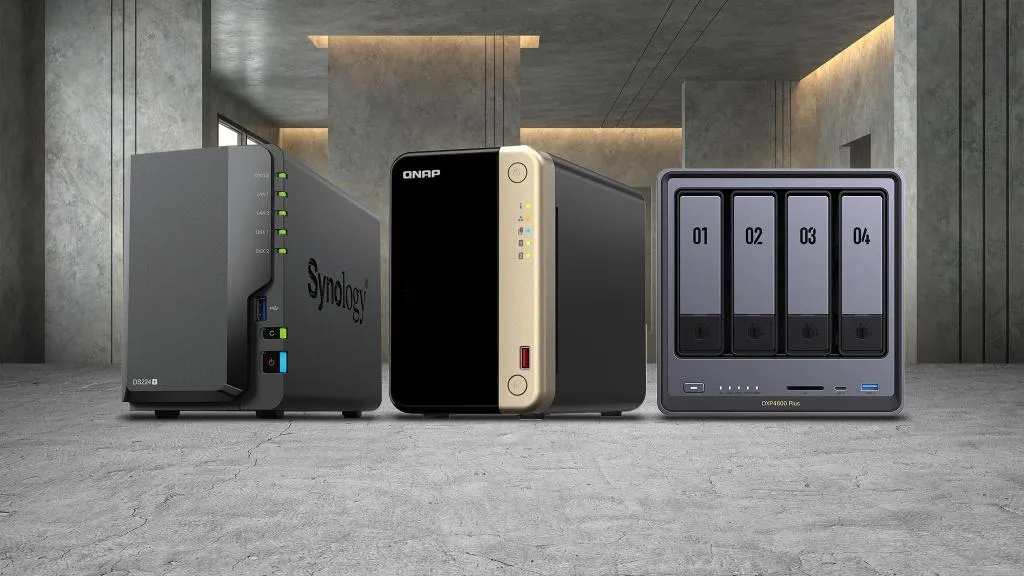
For those who prefer to buy a device that's ready to set up, here are three options with different approaches.
Synology DiskStation DS225+: for those who prioritize ease of use
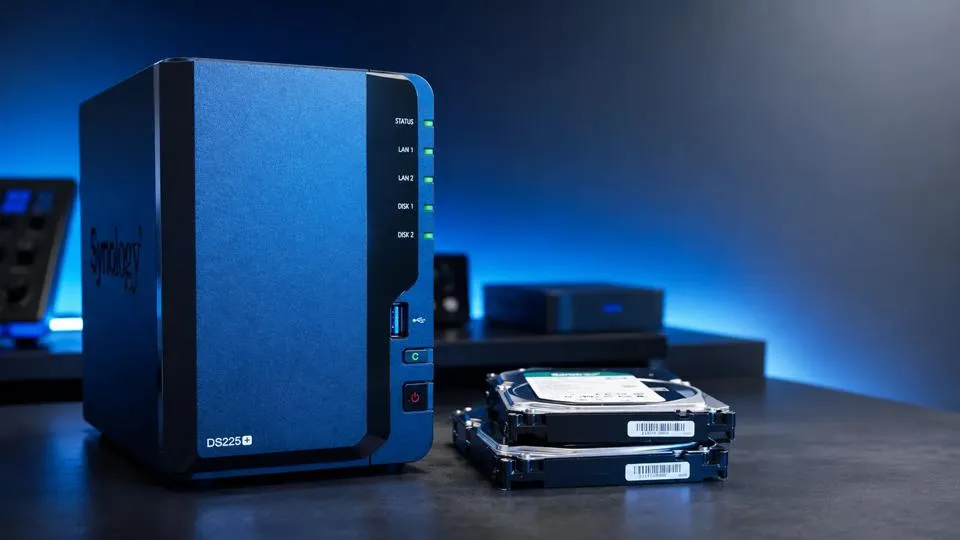
Synology is one of the best-known manufacturers in the network storage market.
The DS225+ is a compact device with two drive bays and network connectivity of up to 2.5 GbE.
One of its main attractions is DiskStation Manager (DSM), Synology's operating system, which includes tools for managing files, users, backups and syncing.
It's an interesting option for homes, freelancers and small offices that prefer an integrated experience.
Before buying drives, check the compatibility lists for your model and DSM version. With DSM 7.3, Synology expanded the flexibility to use third-party drives on certain 2025 Plus series models.
UGREEN NASync DXP2800: for those looking for more possibilities
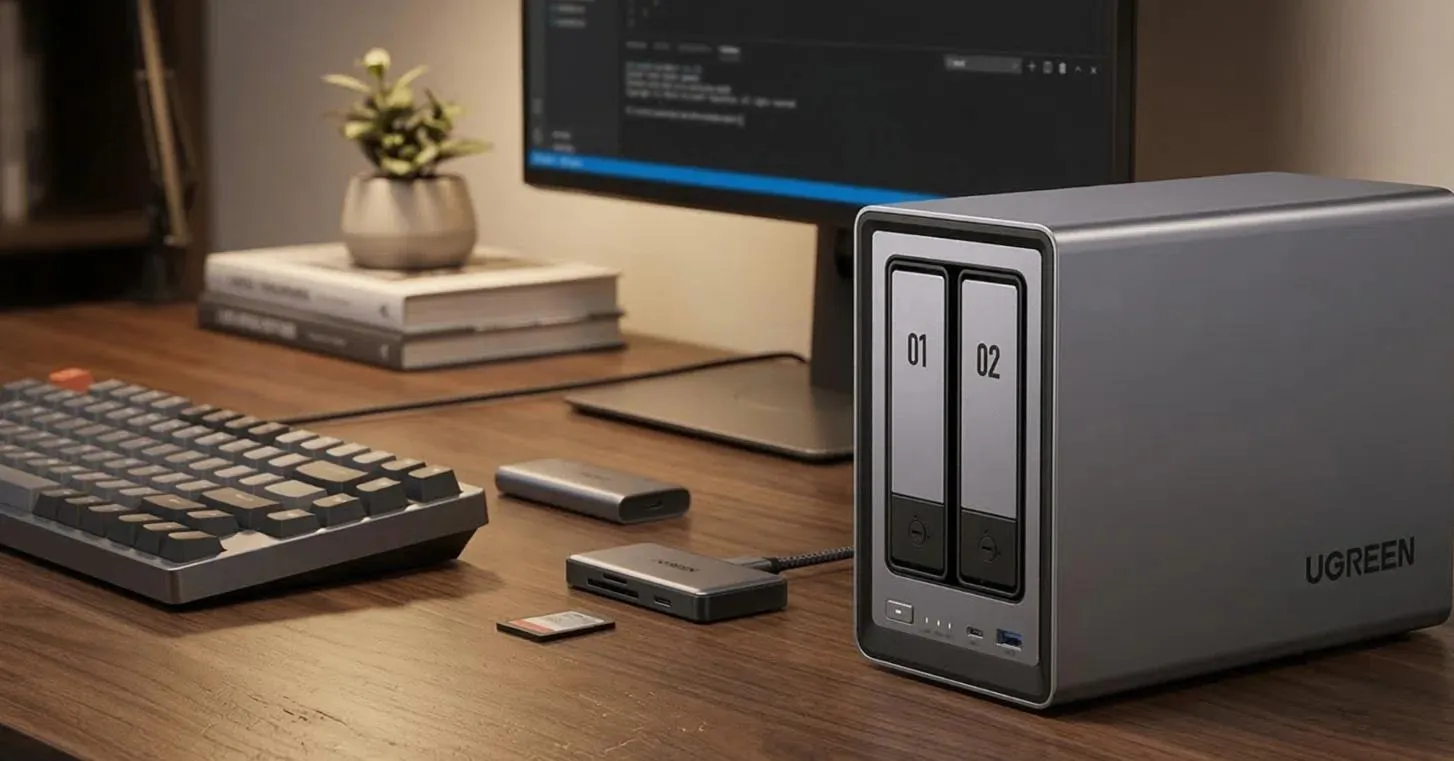
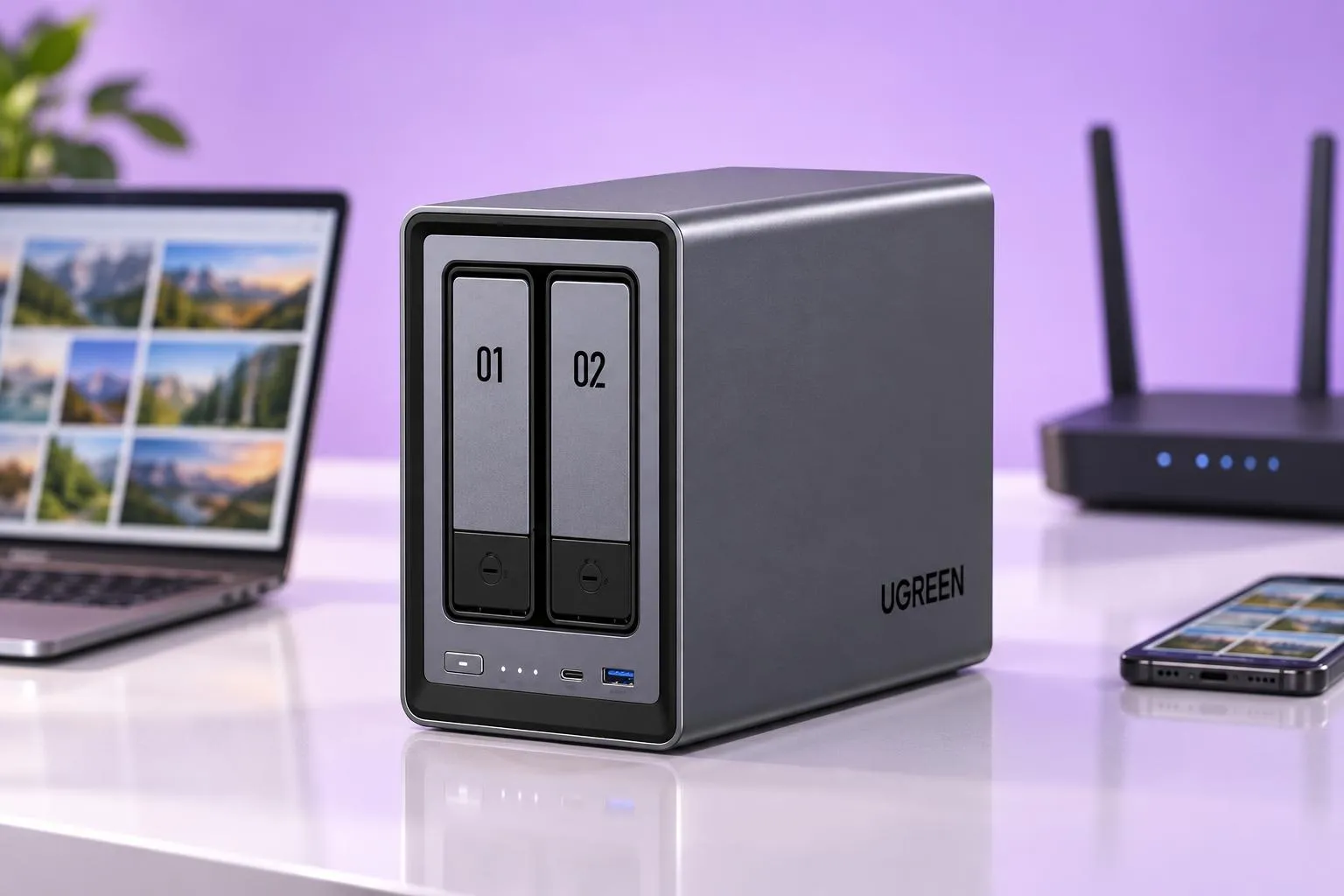
The DXP2800 is another two-bay NAS aimed at users who need centralized storage and additional features.
It's an appealing option for people interested in a home device with good processing and connectivity capabilities.
It can be an option for organizing files, making backups and running applications compatible with its platform.
Before choosing it, check that the specific applications you want to use are available and work properly on its operating system.
With a NAS, hardware power isn't the only thing that matters. The maturity of the software, updates and how easy it is to recover data when something goes wrong also count.
QNAP TS-233: for getting started with network storage
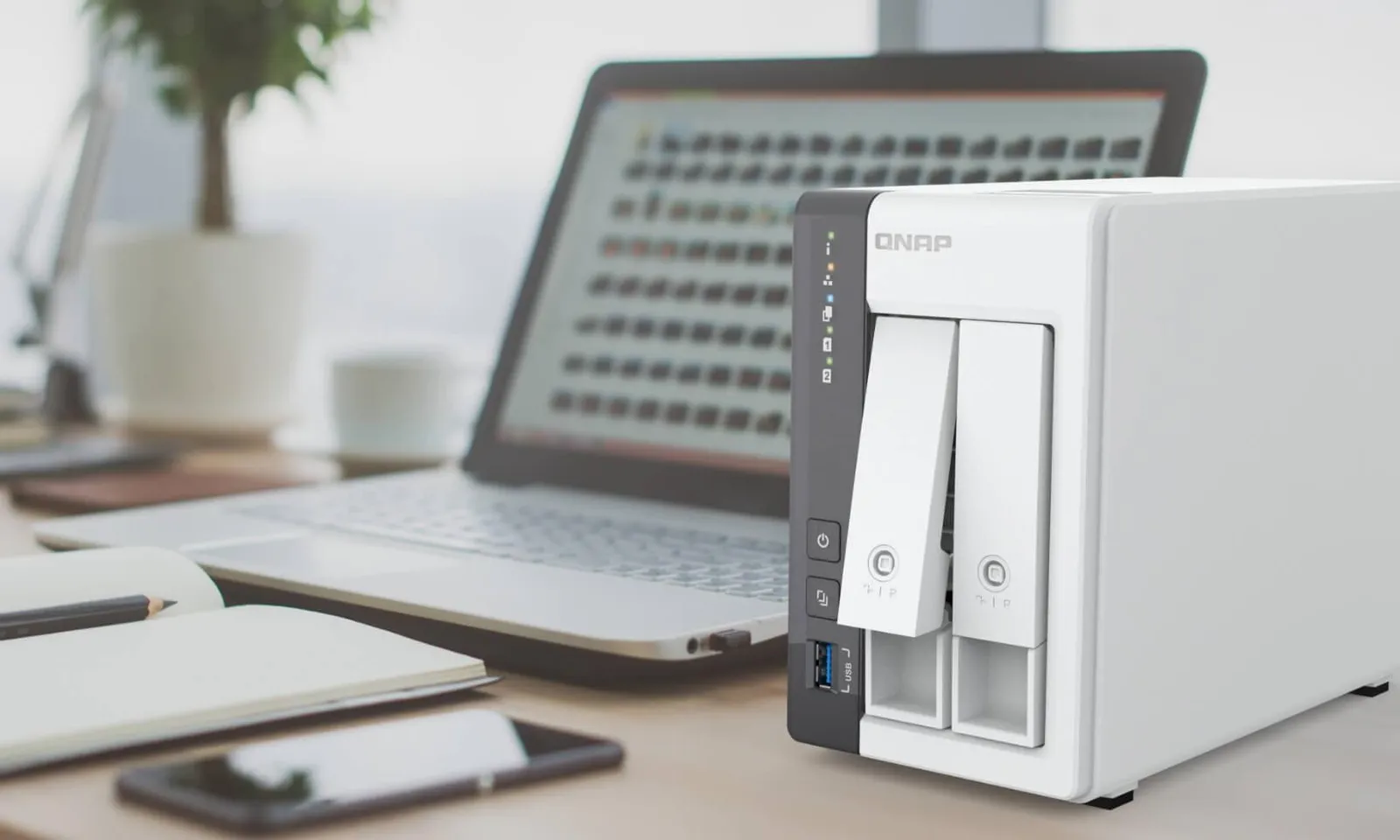
The QNAP TS-233 is an entry-level option with two bays, a quad-core ARM processor, 2 GB of RAM and Gigabit Ethernet connectivity.
It's geared toward tasks like shared storage, backups and file management.
Its main limitation compared to more powerful devices shows up when you want to run several demanding applications at the same time.
If your priority is storing files, sharing folders and learning how to use a NAS, it may be enough. If you plan to use many containers or advanced media services, it's worth looking at other options.
A tip before you buy: compare the full cost, including hard drives. Many NAS devices are sold without storage drives, so the price of the enclosure doesn't necessarily reflect your final investment.
How to build your own home NAS, step by step
Now for the most interesting part: building one.
To get started, you don't need to buy a professional server. A desktop computer you no longer use can work perfectly well, as long as it runs properly and is compatible with the software you choose.
The key is to define what you need before buying components.
Step 1. Choose the hardware
Your NAS needs the same basic components as a computer:
- Processor: a modern, low-power one is usually enough for sharing files and making backups.
- RAM: depends on the operating system and the applications you want to run.
- Storage: HDDs or SSDs, depending on the capacity and performance you need.
- Ethernet connection: recommended for a stable network connection.
- Power supply: reliable and suitable for the installed components.
- Case: with enough space, good ventilation and connections for the drives.
If you're going to reuse a computer, check that it has enough SATA ports, physical space and a power supply in good condition.
A refurbished business computer, such as certain HP EliteDesk tower models, can be a good starting point.
However, you should check the number of bays and connectors available. Not every variant lets you install several drives without modifications.
How much RAM do you need?
For a simple server with OpenMediaVault, a modest computer may be enough.
On the other hand, to use TrueNAS with ZFS, it's a good idea to consider at least 8 GB of RAM as a starting point and check the current requirements for the version you'll install.
If you also want to run applications, containers and media services, you'll need to set aside more memory.
Don't buy hardware based solely on a number from a guide. Define your workloads first.
Step 2. Choose the storage drives
This is one of the components that deserves the most attention.
You can use regular HDDs or models designed to run continuously in NAS systems, such as certain Western Digital Red Plus or Seagate IronWolf lines.
The latter are designed for network storage workloads, although that doesn't mean they're immune to failure.
To start, a common setup is to use two drives of the same capacity.
For example:
Two 4 TB drives configured as a mirror (RAID 1) give you approximately 4 TB of nominal usable capacity, before accounting for reserved space and differences between units of measurement.
The second drive keeps a copy of the data on the first, so the system can keep running if one of the drives fails, as long as the array is healthy.
But there's something fundamental you need to understand: RAID is not a backup.
We'll come back to this later because it's one of the most dangerous mistakes when starting out.
Step 3. Install a NAS operating system
You don't need to use Windows as your main system.
There are platforms built specifically for managing network storage.
TrueNAS Community Edition
It's a powerful option that uses ZFS, a file system known for its data integrity and storage management features.
It's especially interesting for those who want to learn about pools, snapshots and advanced storage.
That said, it requires careful planning of memory and drive configuration.
It stands out for its flexibility and for allowing certain configurations with drives of different capacities.
It's popular among those who want to combine storage with applications and containers.
Keep in mind that it uses a paid licensing model and that data protection depends on how you configure the system.
It's a free, Debian-based alternative.
It's appealing for getting started with relatively modest resources and setting up classic file server features.
For a simple project, it can be one of the most accessible ways to learn how a NAS works.
Which one would I choose to start?
If your main goal is to learn and share files without overcomplicating the project, I would start by evaluating OpenMediaVault.
If you want to dig deeper into ZFS and build a more advanced storage solution, I would look into TrueNAS.
And if you need a flexible platform for storage and applications, I would consider Unraid.
Step 4. Set up your server
Although each system has a different interface, the general process is similar.
First, download the operating system image from its official website and prepare a USB installation drive.
Then, install the system on a suitable boot drive, ideally separate from the drives meant to store your files. The process can erase the selected drive, so double-check where you're installing it.
Once the machine boots, connect it to the router with an Ethernet cable.
From another computer on the same network, you'll be able to access the administration interface using the NAS's IP address.
Next, configure the storage, create an administrator user, set permissions and enable the shared folders you need.
For example, you can create folders called:
- Documents
- Photos
- Videos
- Projects
- Backups
You can also enable SMB, the protocol that lets you access shared folders from Windows, macOS and other compatible systems.
Before you start storing important documents, test that you can access the folders and restore files from a backup.
Step 5. Install useful applications
Once your NAS is up and running, you can add new features.
Three interesting tools are:
Immich: for managing a library of personal photos and videos.
Jellyfin: for organizing and playing compatible media content.
Tailscale: for creating private connections between devices and making remote access easier without exposing the NAS's admin interface directly to the Internet.
Availability depends on the operating system, its architecture and the device's resources.
You don't need to install all of these tools on day one. It's better to start with stable storage and tested backups, and then add extra features.
The mistake to avoid: confusing RAID with a backup
Let's say you set up two drives as a mirror and one of them fails.
The other one still has the data. That's an important advantage.
But what happens if you accidentally delete a folder?
What if ransomware encrypts your files?
Or if a power failure damages both drives?
In those situations, the mirror may not help you.
That's why it's important to know the 3-2-1 backup rule:
- Keep three copies of your important data, including the original.
- Use two types of media or storage systems.
- Keep one copy away from the main location.
For example, you could keep your original files on your computer, a copy on the NAS and another external copy, disconnected or stored in a different location.
It's also a good idea to have historical versions or immutable backups when the platform supports them.
And remember: a backup you've never tried to restore hasn't yet proven it can save you.
How much does it cost to build a home NAS?
It mainly depends on the hardware you already have and the drives you need to buy.
If you already have a compatible computer, your initial spending may be mostly on storage drives.
On the other hand, if you have to buy a processor, motherboard, case, power supply and memory, the cost can come close to that of a commercial NAS.
There are also costs many people forget:
Electricity: a device that's on 24 hours a day uses power all year round.
Maintenance: drives can fail and will eventually need replacing.
Off-site backup: keeping additional copies also has a cost.
Time: setting up, updating and troubleshooting takes dedication.
That's why it's not accurate to say that building a NAS is always cheaper.
If you already have the hardware, it can be an affordable option. If you're starting from scratch, you should compare the total cost before deciding.
Can a NAS replace Google Drive or Dropbox?
For certain uses, yes.
If you need to store personal files, share folders, sync devices and keep a media library, a NAS can cover a good part of those needs.
But there are differences worth considering.
With a cloud storage service, the provider takes care of running the infrastructure. With your own NAS, you're responsible for the hardware, updates, backups and a good part of the security.
Also, a home NAS depends on your power supply and Internet connection to provide remote access.
And although local storage can be cheaper in the long run in some scenarios, that doesn't mean storage is free.
The good news is that you don't have to choose one or the other.
You can use your NAS as your main storage and a cloud service to keep an off-site copy of your most important files.
Often, that combination makes much more sense than trying to replace absolutely everything.
Security tips before using your NAS
A server that holds your photos, personal documents or work projects deserves the same precautions as any other important device.
Keep the operating system up to date, use unique passwords and turn on multi-factor authentication when available.
Create individual accounts and grant only the permissions that are needed.
Avoid exposing the admin interface directly to the Internet through open ports unless you have a clear reason and the knowledge to protect it.
To access it from outside your home, consider a VPN or a private solution like Tailscale, properly configured.
And above all, keep independent backups and regularly test that you can restore them.
No matter how much you've invested in drives: no device is immune to failure.
Frequently asked questions about NAS
Do I need programming skills to have a NAS?
No. Commercial NAS devices and some open-source platforms offer graphical interfaces that let you configure storage, users and folders without programming.
However, building your own NAS requires understanding basic concepts about networks, drives and operating systems.
Can I use an old computer as a NAS?
Yes, as long as the hardware works properly and is compatible with the system you choose.
Before you start, check the condition of the components, connectivity, ventilation, available ports and power consumption.
Does the NAS need to be on 24 hours a day?
Not necessarily. It depends on how you use it.
If you want continuous automatic backups or remote access at any time, it will usually make sense to keep it on.
If you only use it occasionally, you can set a different operating schedule.
Can I access my NAS from another country?
Yes, as long as you set up a secure remote access method and the device is available.
The speed will depend, among other factors, on the upload speed of the connection where the NAS is located and on the connection of the remote device.
How many drives do I need to get started?
You can start with one, although you won't have redundancy.
Two drives allow certain mirror configurations and offer protection against the failure of one drive, but they don't replace independent backups.
What's the difference between a NAS and an external hard drive?
An external drive usually connects directly to a computer via USB or another interface.
A NAS connects to the network and can provide storage to multiple devices, users and applications.
Conclusion: is it worth having your own cloud?
A NAS can be an excellent solution if you need to organize files, automate backups, centralize photos or share information across several devices.
But you don't need to start by buying the most expensive device.
My recommendation is to first define the problem you want to solve.
If you only need to store a few documents, an external drive or a cloud service is probably enough.
If you have several devices, large file libraries or want to learn how a home server works, building a NAS can be a truly worthwhile project.
And the best part is that you can start with something simple and keep learning as you use it.
Technology makes more sense when you understand why you need it, not when you buy something just because it's trendy.
Would you buy a ready-to-use NAS or would you rather build your own?
Rafael Azuaje — Computer Engineer. I share content about technology, artificial intelligence, automation and web development, explained in a practical and accessible way.